In this article we will explore how to configure an Anycast Gateway on Enterprise SONiC.
Modern data center networks rely on distributed, scalable architectures where workloads can move freely across the fabric without introducing complexity for hosts or applications. In EVPN-VXLAN–based designs, the anycast gateway plays a central role in achieving this flexibility.
An anycast gateway allows multiple leaf switches to share the same default gateway IP address and MAC address for a given VLAN or subnet. Instead of relying on traditional first-hop redundancy protocols like VRRP, SONiC enables each leaf switch to act as an active gateway for the hosts directly connected to it. This ensures that traffic forwarding is always local, reducing latency and eliminating inefficient “tromboning” through remote leaf switches.
By providing a uniform gateway presence across the fabric, anycast gateway simplifies host mobility and VM migration—hosts retain the same default gateway even if they move to a different rack or leaf switch. This consistent L2/L3 boundary is crucial for multi-tenant environments, cloud-native workloads, and modern leaf-spine architectures.
In this article we will cover:
Anycast Gateway overview
Configuring the Anycast Gateway MAC address
Assigning VLAN interfaces with the Anycast Gateway
Verifying the configuration
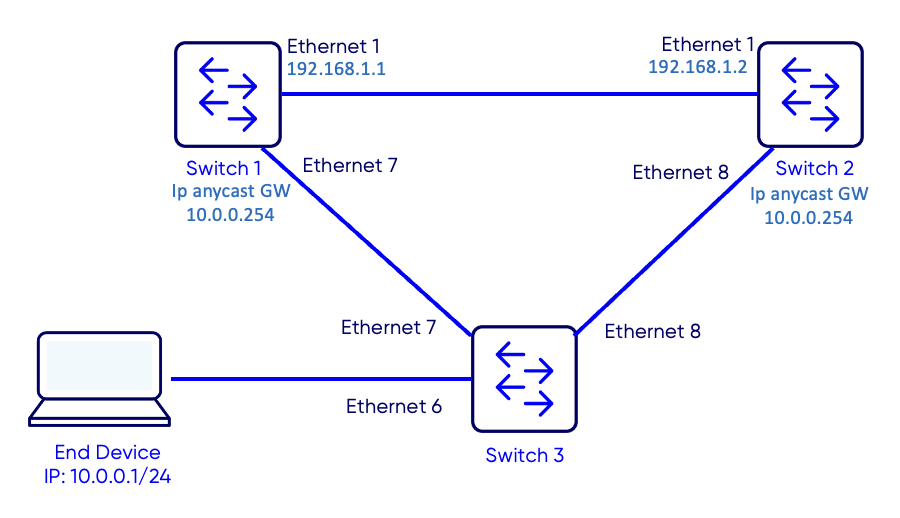
Network Topology
Anycast Gateway Overview
An Anycast Gateway allows hosts in different racks or leaf switches to share the same default gateway IP and MAC address. This simplifies host mobility and ensures that packets are always routed locally within the rack.
Anycast Gateway Configuration
Step 1: Configuring the Anycast Gateway MAC Address
Set a global Anycast Gateway MAC address that will be used by all participating VLAN interfaces. The MAC address has to be same across all switches.
Switch 1
Switch-1# configure terminal
Switch-1(config)# ip anycast-mac-address 00:11:22:33:44:55
Switch-1(config)# ip anycast-address enable
Switch 2
Switch-2# configure terminal
Switch-2(config)# ip anycast-mac-address 00:11:22:33:44:55
Switch-2(config)# ip anycast-address enable
Step 2: Assigning VLAN Interfaces with the Anycast Gateway
Create the VLAN interfaces and configure the same IP address on each switch with the Anycast Gateway enabled.
Use the command show ip static-anycast-gateway to verify the configuration.
Switch 1
Switch-1# show ip static-anycast-gateway
Configured Anycast Gateway MAC address: 00:11:22:33:44:55
Router MAC for Forwarding : No
IPv4 Anycast Gateway MAC address: enable
Total number of gateway: 1
Total number of gateway admin UP: 1
Total number of gateway oper UP: 1
Interfaces           Gateway Address      Vrf             Admin/Oper
-------------------  ---------------      --------------- ----------
Vlan10               10.0.0.254/24                           up/up
Switch 2
Switch-2# show ip static-anycast-gateway
Configured Anycast Gateway MAC address: 00:11:22:33:44:55
Router MAC for Forwarding : No
IPv4 Anycast Gateway MAC address: enable
Total number of gateway: 1
Total number of gateway admin UP: 1
Total number of gateway oper UP: 1
Interfaces           Gateway Address      Vrf             Admin/Oper
-------------------  ---------------      --------------- ----------
Vlan10               10.0.0.254/24                           up/up
Anycast Gateway MAC — The globally configured MAC address.
VLAN — VLAN ID where the Anycast Gateway is enabled.
IP Address — Default gateway IP configured for hosts.
Status — Displays whether the Anycast Gateway is active on the VLAN interface
Testing the configuration
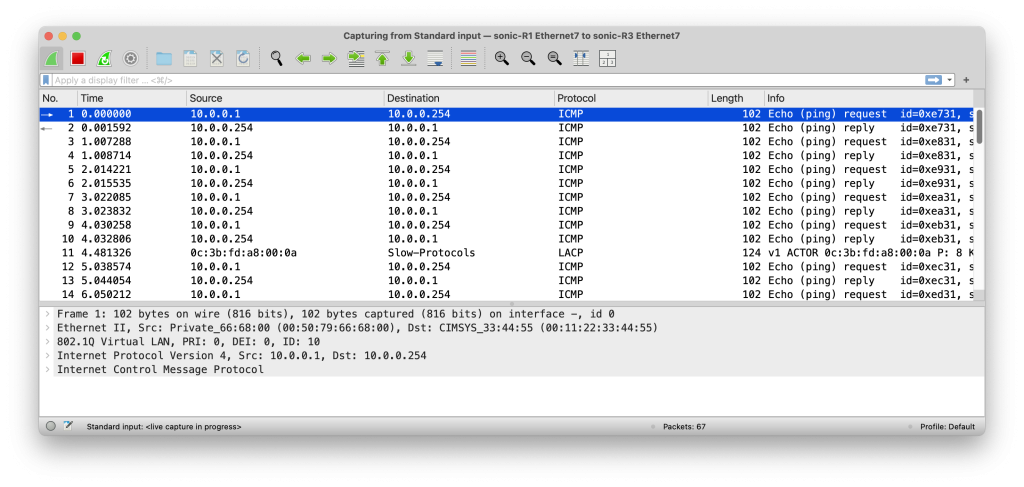
To test the configuration, we will start a ping from the end device to the IP address of the anycast gateway 10.0.0.254. The ICMP traffic go through the link between switch 3 and switch 1 as we can see in the wireshark capture.
Packet Capture Link Switch 1 to Switch 3
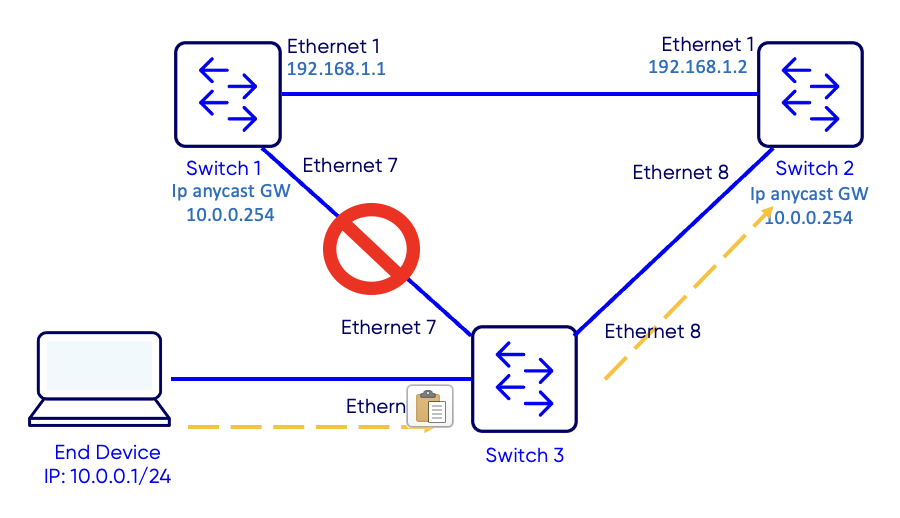
While the ping is running we will disconnect the link between Switch 3 and Switch 1.
Failover Test
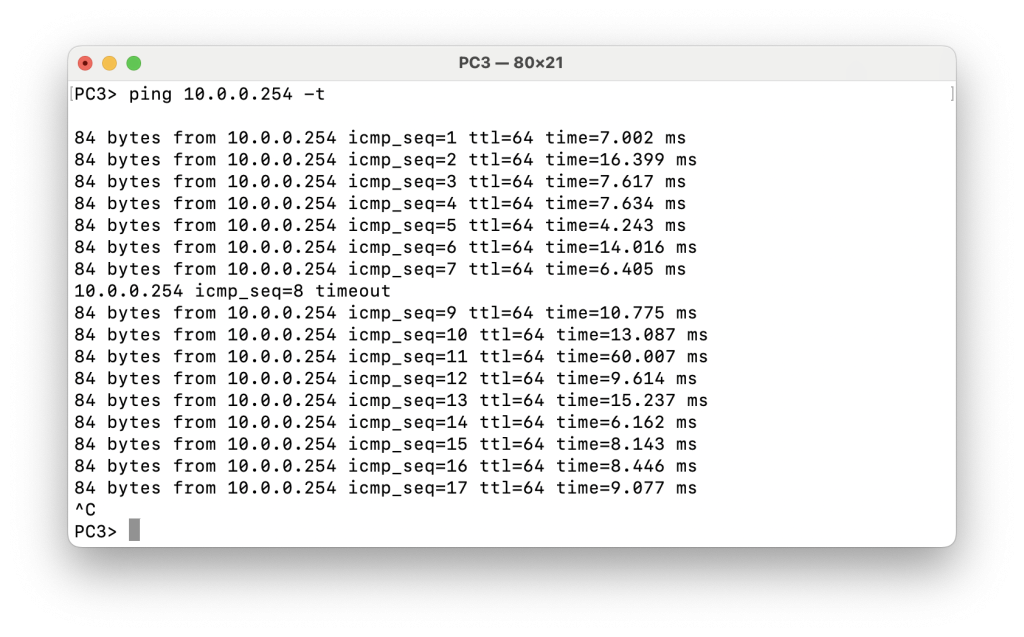
We can see that the ping continues to work but we notice one ping timeout during the convergence.
Conclusion
Anycast gateway in a Layer-2 SONiC environment provides a simple, fast, and highly available first-hop gateway without the complexity of FHRP protocols like VRRP. By giving multiple switches the same virtual MAC and IP, hosts always see a consistent default gateway—regardless of which switch they are connected to.
Notes
Identical Gateway Configuration: Ensure all participating switches use the exact same virtual MAC and gateway IP for each VLAN. Any mismatch will result in ARP conflicts or traffic drops.
Stable L2 Domain: Anycast gateway assumes a stable Layer-2 domain; excessive loops or topology changes can affect gateway reachability.
Avoid Duplicate IP/MAC Sources: Ensure no other device accidentally advertises the same gateway IP or MAC, as this will cause traffic instability.