Installation SONiC sur GNS3

In this article we will show you how to install Enterprise SONiC in GNS3.

GNS3 is a virtual networking playground that lets you build and test networks on your computer without needing any physical hardware. You can drag and drop routers, switches, servers, and firewalls onto a canvas and connect them just like you would in a real lab. It’s free, easy to use, and great for learning, experimenting, or validating ideas before rolling them out in production. GNS3 also supports a wide range of network devices, which makes it especially helpful for testing interoperability between SONiC and other vendors.

You can download GNS3 from the official site: www.gns3.com

To install SONiC on GNS3, you need the following:

  • SONiC Virtual Switch image
  • SONiC gns3a appliance file

You can download the virtual switch image from the Broadcom github https://github.com/Broadcom/sonic-VirtualSwitch/releases/tag/3.1.2

The image should be called sonic-vs.img if it’s not change the name to sonic-vs.img to ease the importing in GNS3.

If you need another version please get in touch with us. CONTACT US

SONiC-VS image provides users the ability to verify the control plane functions (for example. BGP, MC-LAG) on a typical data center switch. 

The Features Supported with SONiC-VS Image:

  • eBGP / iBGP – (underlay and overlay)
  • MC-LAG
  • OSPF underlay with BGP / EVPN as overlay
  • Numbered and un-numbered interfaces
  • BGP un-numbered
  • Route leaking
  • Multi-VRF (Multi-tenants)
  • BFD
  • VLAN
  • Static Anycast Gateway
  • etc

The data plane functionality (for example ACL, QOS, PBR) is not supported by SONiC-VS as it does not have underlying physical platform.

You also need a GNS3 appliance file. The GNS3 appliance file (.gns3a) acts as a blueprint that automates how SONiC is deployed inside GNS3. Instead of manually configuring QEMU settings, hardware parameters, and disk images, the appliance file bundles all the required metadata—CPU, RAM, NIC types, supported images, and recommended defaults—so SONiC boots with the correct environment every time. This makes importing and running SONiC in GNS3 fast, repeatable, and error-free.

Step 1 : Creating SONiC GNS3 appliance file

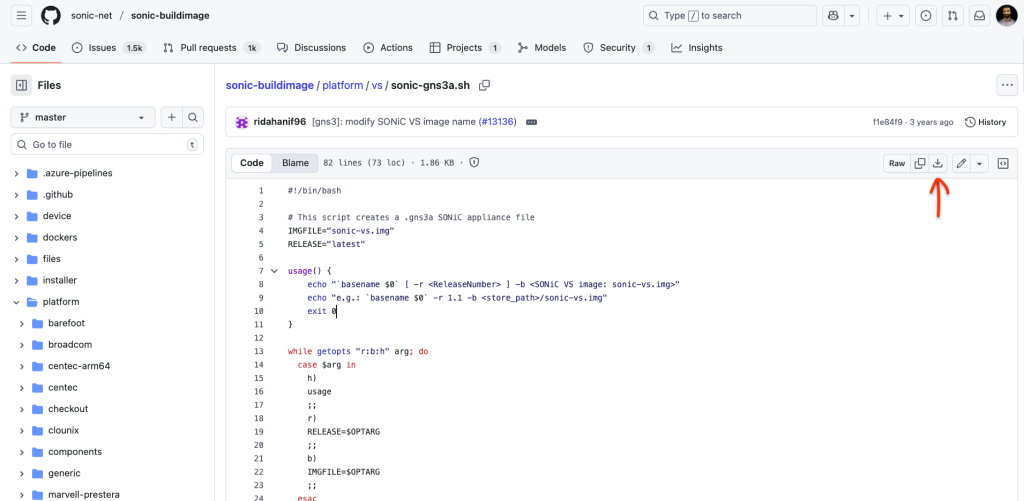
You can create the GNS3 appliance using a script available on the SONiC Github. Go to https://github.com/sonic-net/sonic-buildimage/blob/master/platform/vs/sonic-gns3a.sh

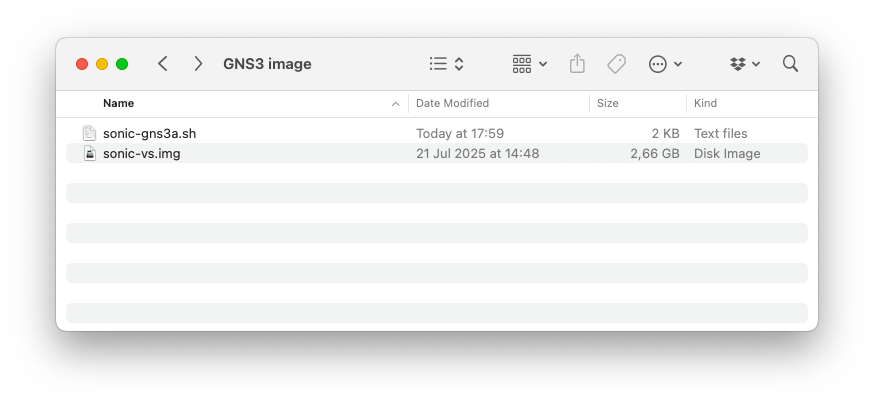
Download the file by clicking the download button next to the “Raw” button. Save it in the same directory as the SONiC image you downloaded.
This is the script.
#!/bin/bash

# This script creates a .gns3a SONiC appliance file
IMGFILE="sonic-vs.img"
RELEASE="latest"

usage() {
    echo "`basename $0` [ -r  ] -b "
    echo "e.g.: `basename $0` -r 1.1 -b /sonic-vs.img"
    exit 0
}

while getopts "r:b:h" arg; do
  case $arg in
    h)
	usage
	;;
    r)
	RELEASE=$OPTARG
	;;
    b)
	IMGFILE=$OPTARG
	;;
  esac
done

if [ ! -e ${IMGFILE} ]; then
    echo "ERROR: ${IMGFILE} not found"
    exit 2
fi


MD5SUMIMGFILE=`md5sum  ${IMGFILE} | cut -f 1 -d " "`
LENIMGFILE=`stat -c %s ${IMGFILE}`
GNS3APPNAME="SONiC-${RELEASE}.gns3a"
NAMEIMGFILE=`basename $IMGFILE`

echo "
{
    \"name\": \"SONiC\",
    \"category\": \"router\",
    \"description\": \"SONiC Virtual Switch/Router\",
    \"vendor_name\": \"SONiC\",
    \"vendor_url\": \"https://sonic-net.github.io/SONiC/\",
    \"product_name\": \"SONiC\",
    \"product_url\": \"https://sonic-net.github.io/SONiC/\",
    \"registry_version\": 3,
    \"status\": \"experimental\",
    \"maintainer\": \"SONiC\",
    \"maintainer_email\": \"sonicproject@googlegroups.com\",
    \"usage\": \"Supports SONiC release: ${RELEASE}\",
    \"first_port_name\": \"eth0\",
    \"qemu\": {
        \"adapter_type\": \"e1000\",
        \"adapters\": 10,
        \"ram\": 2048,
        \"hda_disk_interface\": \"virtio\",
        \"arch\": \"x86_64\",
        \"console_type\": \"telnet\",
        \"boot_priority\": \"d\",
        \"kvm\": \"require\"
    },
    \"images\": [
        {
            \"filename\": \"${NAMEIMGFILE}\",
            \"version\": \"${RELEASE}\",
            \"md5sum\": \"${MD5SUMIMGFILE}\",
            \"filesize\": ${LENIMGFILE}
        }
    ],
    \"versions\": [
        {
            \"name\": \"${RELEASE}\",
            \"images\": {
                \"hda_disk_image\": \"${NAMEIMGFILE}\"
            }
        }
    ]
}

" > ${GNS3APPNAME}

If you are on a macbook like me, you need to modify the highlighted lines as follows:
MD5SUMIMGFILE=`md5sum  ${IMGFILE} | cut -f 1 -d " "`
LENIMGFILE=`stat -c %s ${IMGFILE}`
MD5SUMIMGFILE=$(md5 -q "${IMGFILE}")
LENIMGFILE=`stat -f %z ${IMGFILE}`

Verify that the script in the same folder where you have the SONiC image. The image should be called sonic-vs.img

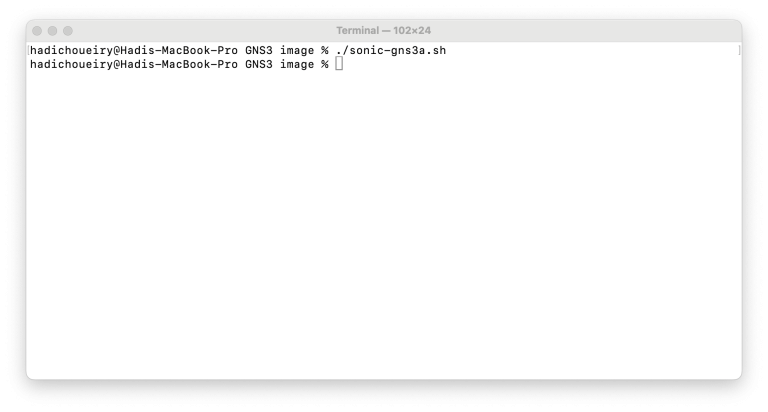
Then run the script. Open a terminal window, navigate to the folder where the script and sonic image are and run the script using the command ./sonic-gns3a.sh

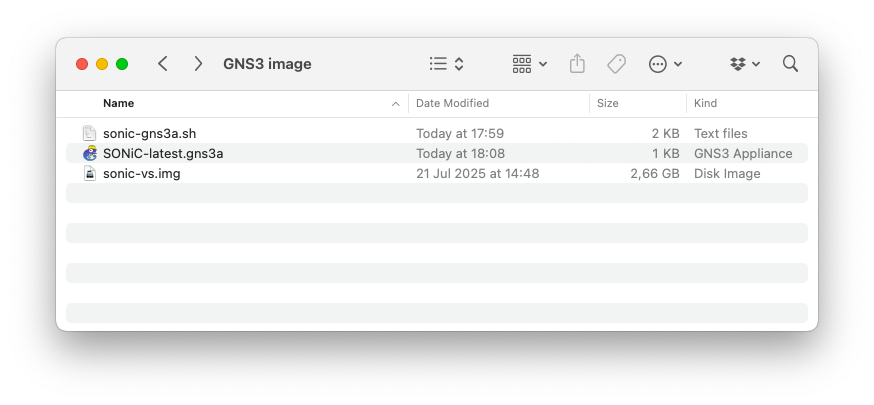
In a few seconds the appliance file will be created in the same folder. It is called SONiC-latest.gns3a

Step 2 : Importing SONiC appliance into GNS3

Now that the appliance file is ready, we can start GNS3 and import our appliance into GNS3. 

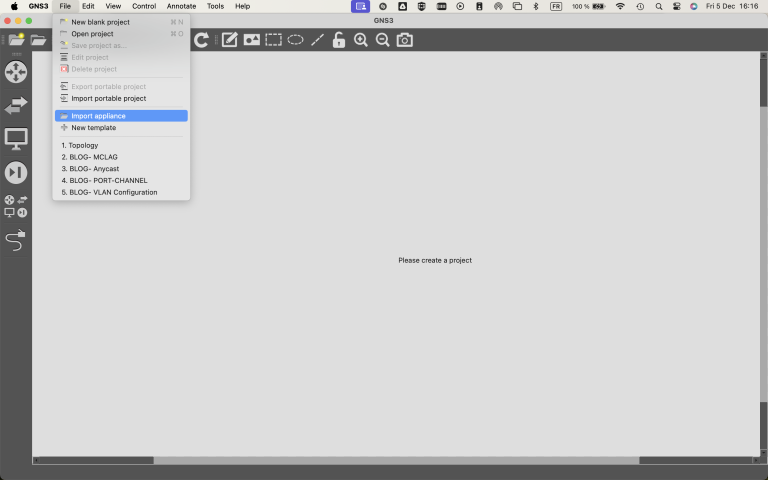
Click on file -> Import Appliance

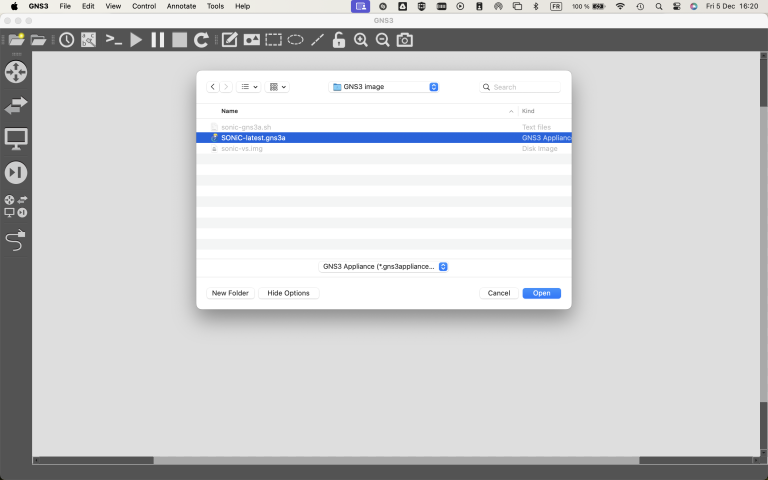
Navigate to the directory where you generated the appliance file and where you have your SONiC image.

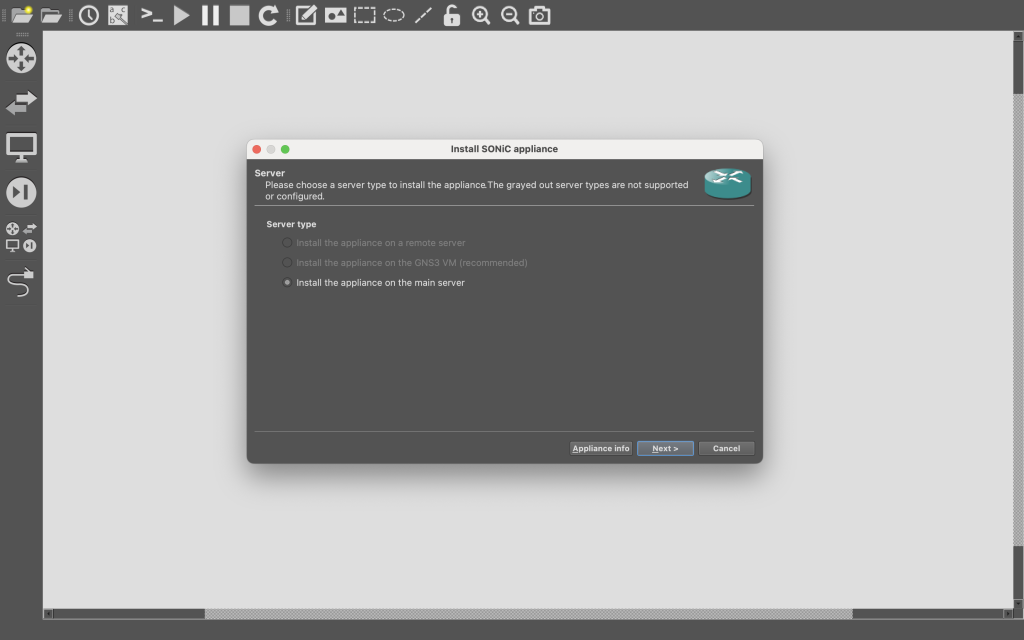
Then install it on the main server.

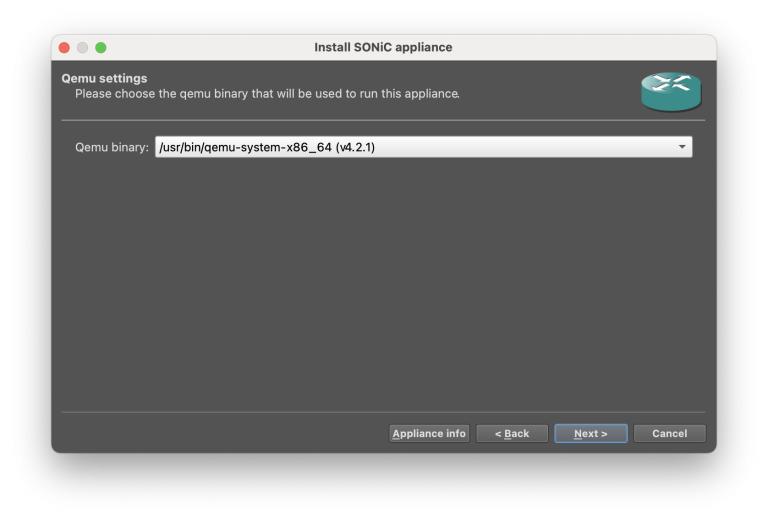
Leave the QEMU settings by default on x86_64.

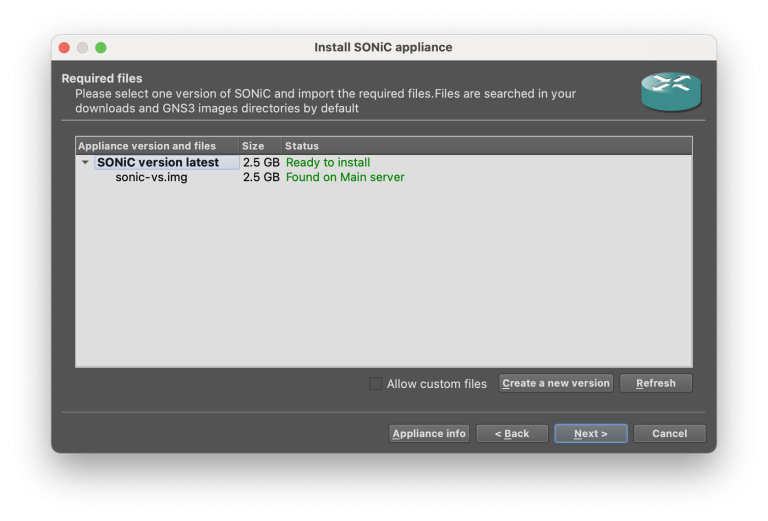
GNS3 will detect the SONiC image file in the directory.

Click next and confirm that you want to install it.

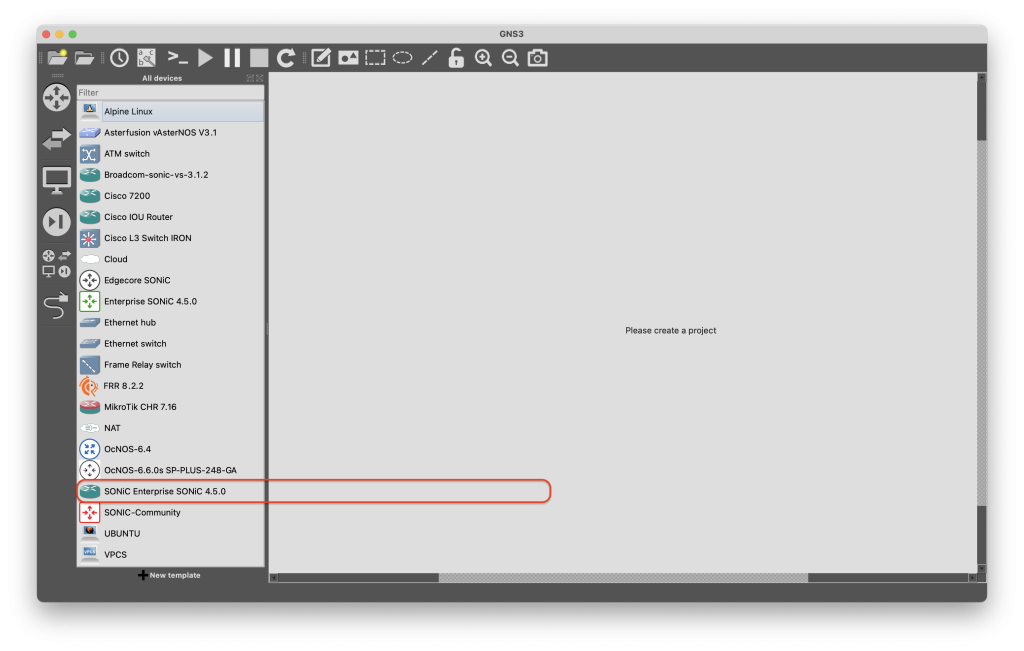
The new SONiC device is added to the device list in GNS3.

Step 3: Testing SONiC in GNS3

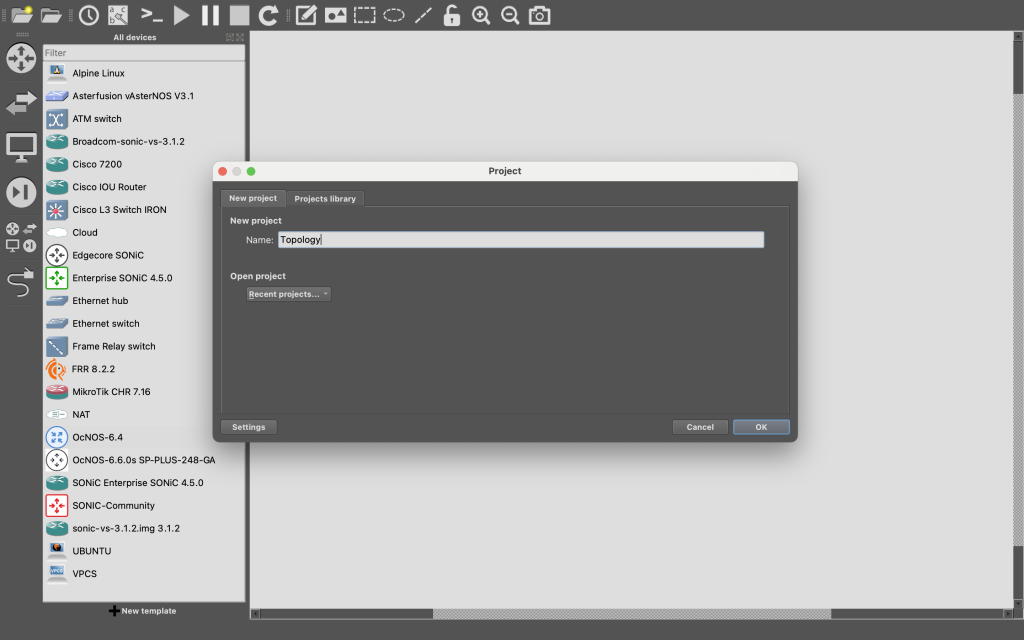
To test it we create a new project called Topology

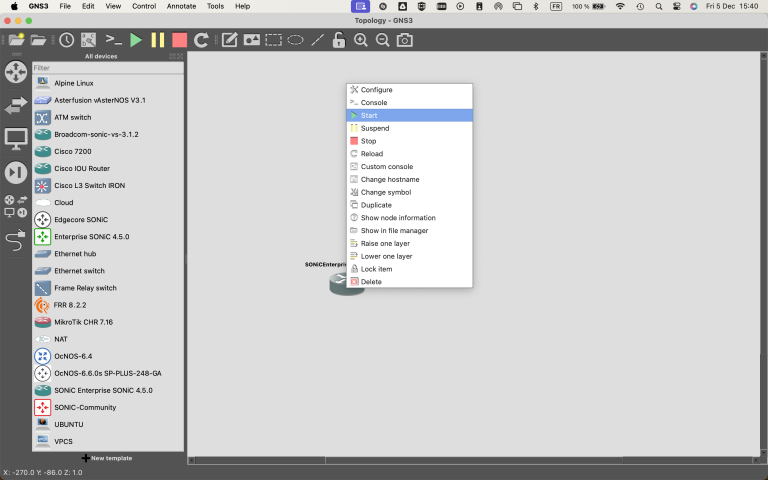
We add the SONiC device to the toplogy, Right-click on the switch to start it.

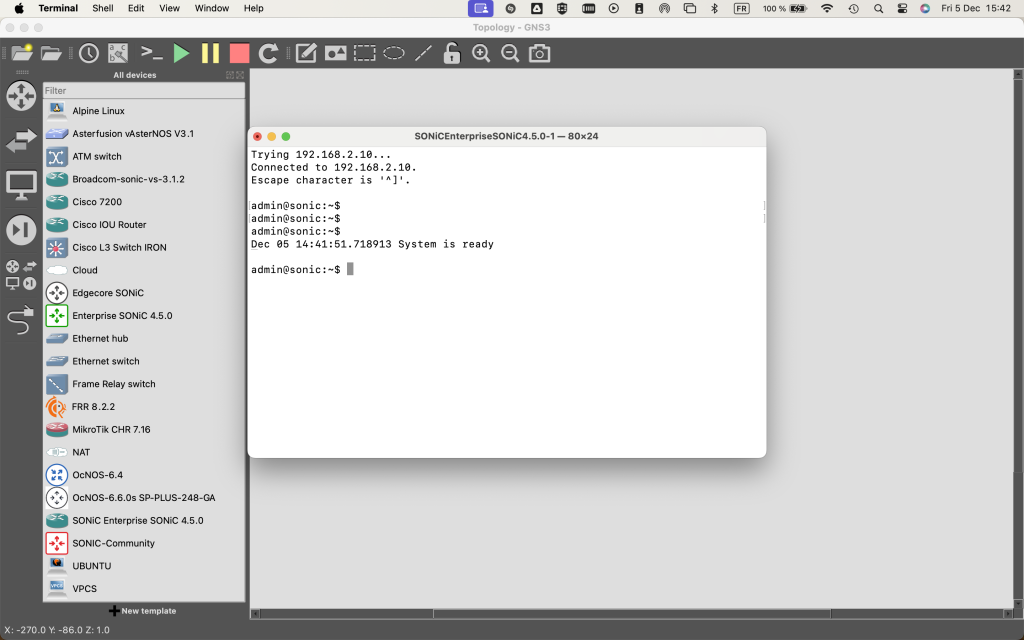
Then you can open the Console by double-clicking on the switch.

It takes a few minutes for the SONiC to boot and for the containers to start.

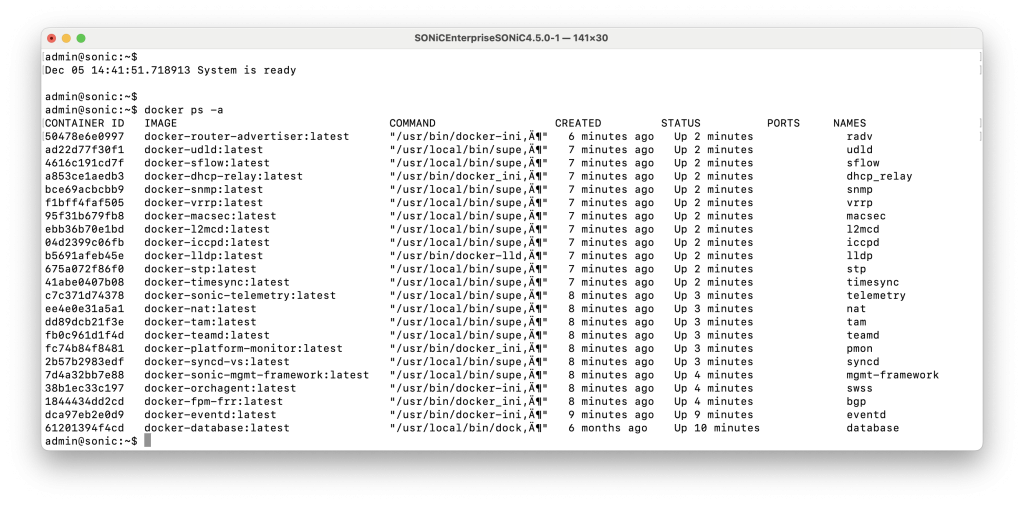
You can check that all the containers have booted using the command: docker ps -a

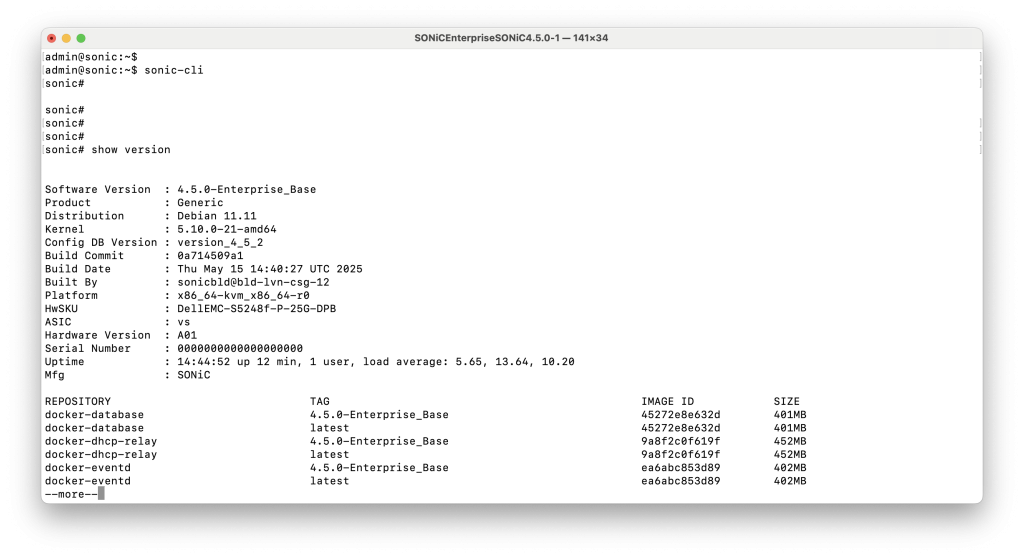
Currently you are in the Linux shell. To go to the SONiC CLI type sonic-cli

With SONiC 4.5.0 up and running, you’re all set to start experimenting SONiC. Happy labbing!

Notes
  • If you feel that the switch is booting slow or is slow in general you can try adding RAM and vCPU to the template. You can do so by right clicking on the device in GNS3 -> configure template -> increase the RAM and vCPUs.